轻松配置 PowerShell :自定义“ll”命令指南
AI-摘要
Nya Bot GPT
AI初始化中...
介绍自己
生成本文简介
推荐相关文章
前往主页
前往tianli博客
执行步骤
按照以下步骤操作可以轻松地完成配置:
以管理员的身份打开 PowerShell。
复制并粘贴下面提供的命令到 PowerShell 窗口中。
按 Enter 键运行命令。
将配置复制并保存
保存配置
具体步骤
以管理员的身份打开 PowerShell,并复制并粘贴执行下面提供的命令,运行后会跳出 VSCode 窗口
code $PROFILE将以下配置复制到 VSCode 并保存
# 传统 Linux 风格的 ll
function ll {
    param([string]$Path = ".")

    # 定义颜色
    $colors = @{
        Directory = "Cyan"
        Hidden = "DarkGray"
        Executable = "Green"
        Compressed = "Magenta"
        Default = "White"
    }

    # 显示目录路径表头
    $fullPath = (Resolve-Path $Path).Path
    Write-Host "`n    Directory: $fullPath`n"

    # 显示列标题
    $headerFormat = "{0,-12} {1,-15} {2,10} {3,19} {4}"
    Write-Host ($headerFormat -f "Permissions", "Owner", "Size", "LastWriteTime", "Name") -ForegroundColor White
    Write-Host ($headerFormat -f "-----------", "-----", "----", "-------------", "----") -ForegroundColor White

    Get-ChildItem -Path $Path -Force | ForEach-Object {
        # 判断文件类型
        $isDir = $_.PSIsContainer
        $isHidden = $_.Attributes -match "Hidden"
        $isExe = $_.Extension -match "\.(exe|bat|cmd|ps1|msi|com)$"
        $isCompressed = $_.Extension -match "\.(zip|rar|7z|gz|tar|bz2)$"

        # 确定颜色
        if ($isDir) { $color = $colors.Directory }
        elseif ($isHidden) { $color = $colors.Hidden }
        elseif ($isExe) { $color = $colors.Executable }
        elseif ($isCompressed) { $color = $colors.Compressed }
        else { $color = $colors.Default }

        # 格式化大小
        $size = if ($isDir) { "<DIR>" } else {
            if ($_.Length -lt 1KB) { "$($_.Length)B" }
            elseif ($_.Length -lt 1MB) { "$([math]::Round($_.Length/1KB,2))KB" }
            elseif ($_.Length -lt 1GB) { "$([math]::Round($_.Length/1MB,2))MB" }
            else { "$([math]::Round($_.Length/1GB,2))GB" }
        }

        # 名称加斜杠(如果是目录)
        $name = if ($isDir) { "$($_.Name)/" } else { $_.Name }

        # 获取所有者(修复版)并截断为15字符
        $owner = try {
            $acl = Get-Acl $_.FullName -ErrorAction SilentlyContinue
            if ($acl -and $acl.Owner) {
                ($acl.Owner -split "\\")[-1]
            } else {
                "N/A"
            }
        } catch {
            "N/A"
        }

        # 截断 Owner 为 15 个字符
        if ($owner.Length -gt 15) {
            $owner = $owner.Substring(0, 15)
        }

        # 逐行输出带颜色
        Write-Host ("{0,-12} {1,-15} {2,10} {3,19} " -f $_.Mode, $owner, $size, $_.LastWriteTime.ToString("yyyy-MM-dd HH:mm")) -NoNewline
        Write-Host $name -ForegroundColor $color
    }

    Write-Host ""  # 结尾空行
}
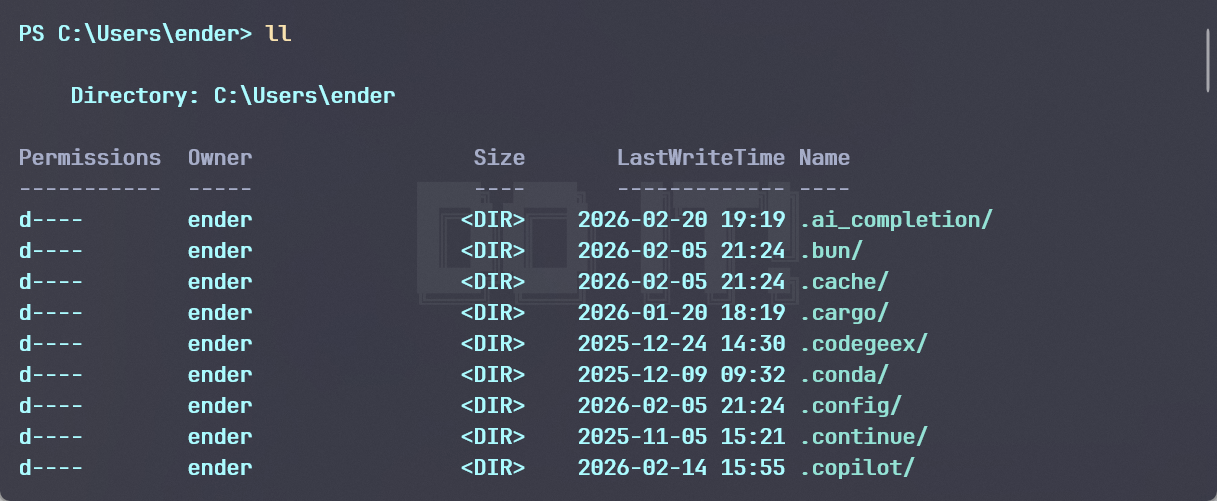
现在就能直接在 PowerShell 中直接使用 ll 命令了
本文是原创文章,采用 CC BY-NC-ND 4.0 协议,完整转载请注明来自 PlayerEG